
In general, I’m both a hands-on and a hands-off learner; my learning style varies widely by subject. However, when programming, I’m undoubtedly a hands-on learner, as I find it very difficult to truly attain mastery of something without having done it yourself. It’s one thing to quickly read over some code and tell yourself that you understand the helper functions and libraries, but unless you really dig deep– searching far in documentation databases or GitHub repositories for the definition of every pertinent line of code, and genuinely understand it deeply enough to apply it fluently in your own projects, you haven’t really “mastered” the skill.
This intrinsically should be true of any skill, by the denotative definition of “master” which is to “acquire complete knowledge or skill in (an accomplishment, technique, or art).” This is why I believe that following the ensuing content of the blog, it would be beneficial for you to know exactly how I set python up on my device, and how you would go about setting it up in the same way (especially if you are also learning code or just want to run the same code on your own device), so you can make the most from my learning process to enrich yours.
Setting Python Up (Steps)
1. Find Python 3.11.1 Here.
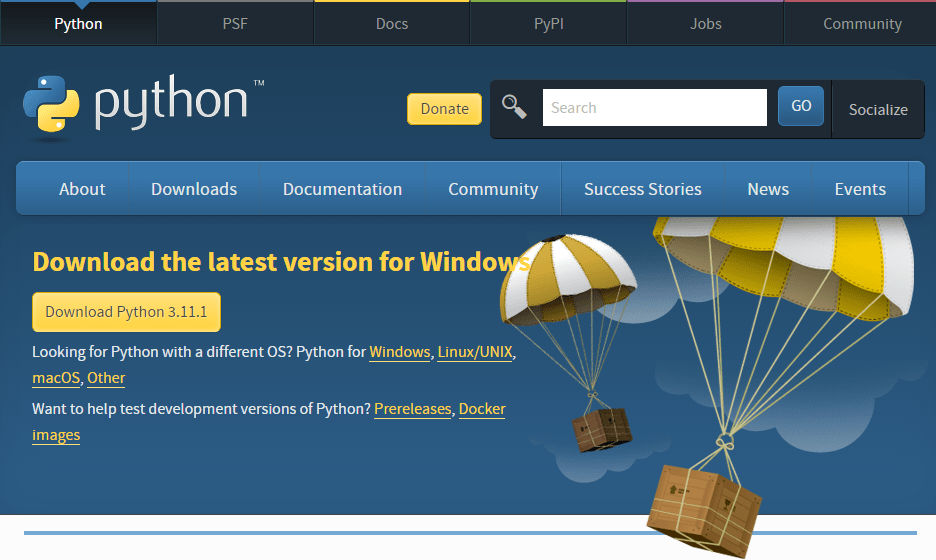
2. Click “Download Python 3.11.1” and launch the downloaded .exe file.

3. Click “Install Now” and wait for python to install.

4. Find PyCharm through JetBrains Here.
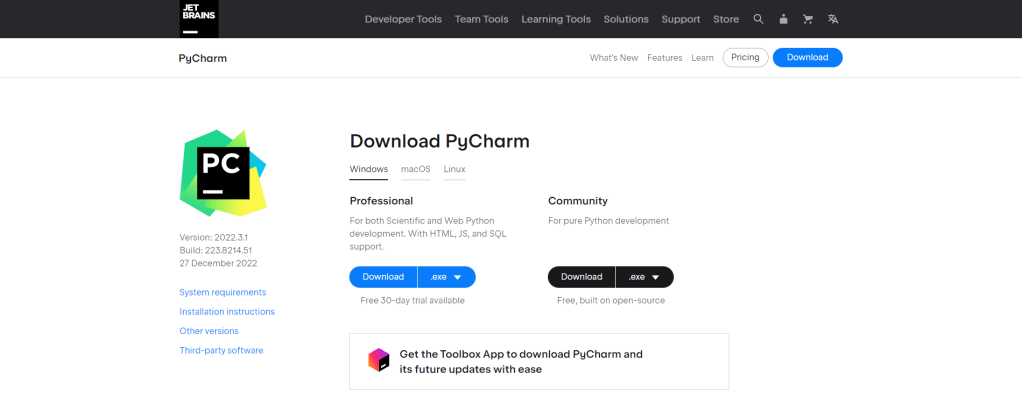
5. Click on the black “Download” button under “Community” and launch the downloaded .exe file for the free version.

6. Click “Next >” on the next few pages until you reach the “Install” button, leaving everything on default.
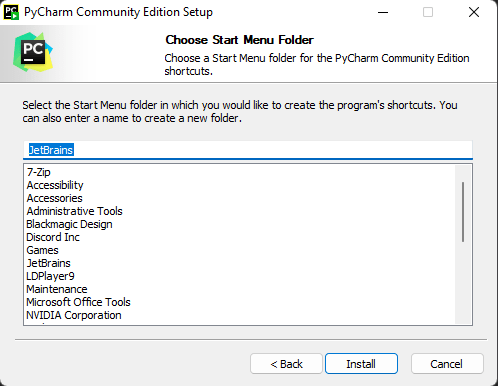
7. Click “Install” and wait for PyCharm Community to install.

8. Check the box “Run PyCharm Community Edition” and click “Finish“.

This should lead you to this screen:

9. Click the button above “New Project”.

10. To the right of “Interpreter”, press “Add Interpreter“.

11. Click “⌂ Add Local Interpreter…“, then go to the “System Interpreter” tab and select your desired interpreter.
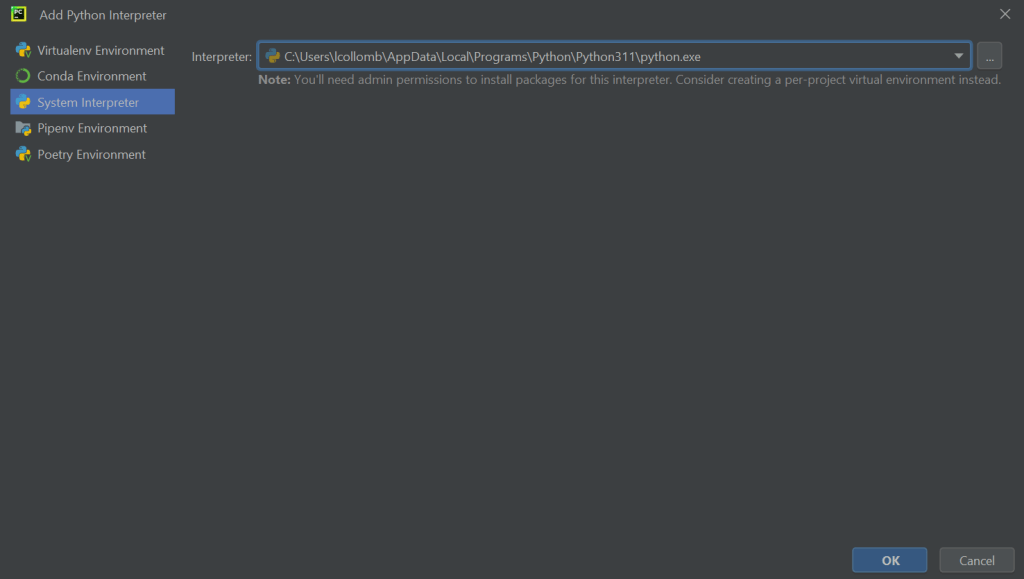
12. Click “OK“, then click “Create” in the bottom right corner.

Doing this should lead you here:

13. Press the green “Run” triangle on the top right corner of the page.
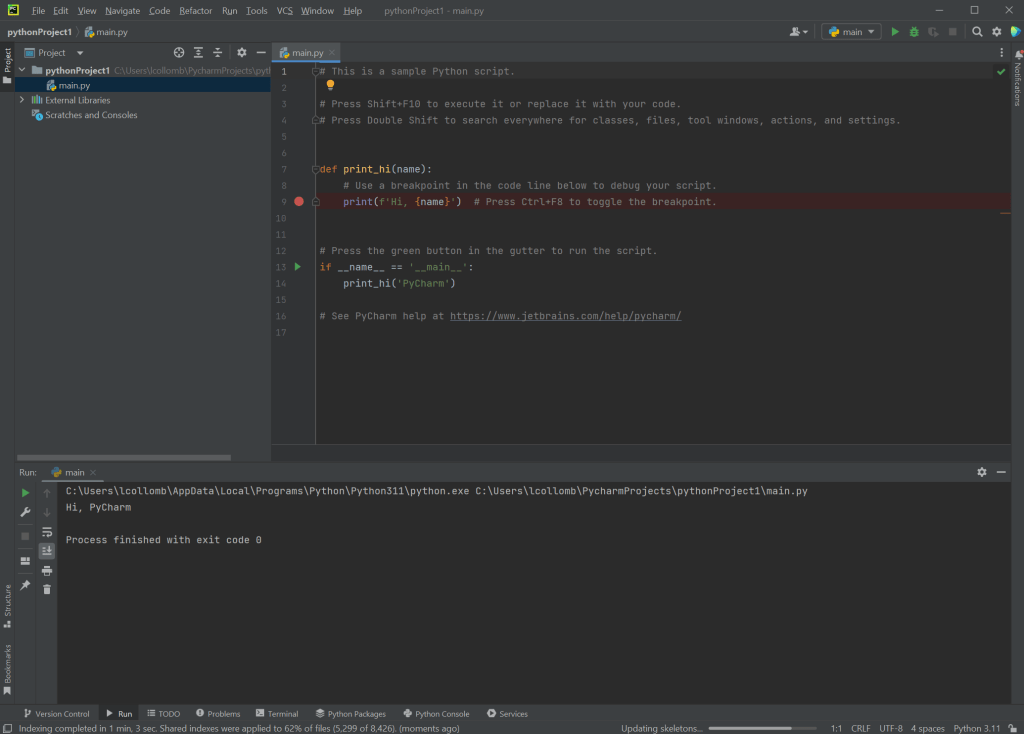
Voilà! You have now set Python up!
 Hardwired Eloquence